Last Updated on April 2, 2026 by Ian Naylor
Want to know which backlinks drive traffic and conversions to your site? Google Analytics 4 (GA4) makes it easy to track referral traffic, showing you exactly where visitors come from when they click on backlinks. This helps you evaluate high-performing partnerships, refine your content strategy, and measure the quality of traffic from external sites.
Key Takeaways:
- Backlink traffic is categorized as "Referral" in GA4’s reports.
- Use the Traffic Acquisition report to identify referring domains and measure engagement metrics like session duration and conversions.
- Configure referral exclusions to filter out irrelevant sources like payment gateways or internal redirects.
- Create custom reports in the Explore section for deeper analysis of backlink performance.
- Adding UTM parameters to backlinks allows for more detailed tracking.
Steps to Get Started:
- Install GA4 on your site and set up referral exclusions.
- Use the Traffic Acquisition report to analyze which backlinks bring engaged users.
- Build custom reports in GA4’s Explore section for granular insights.
- Pair GA4 data with tools like 3Way.Social to focus on building high-quality backlinks.
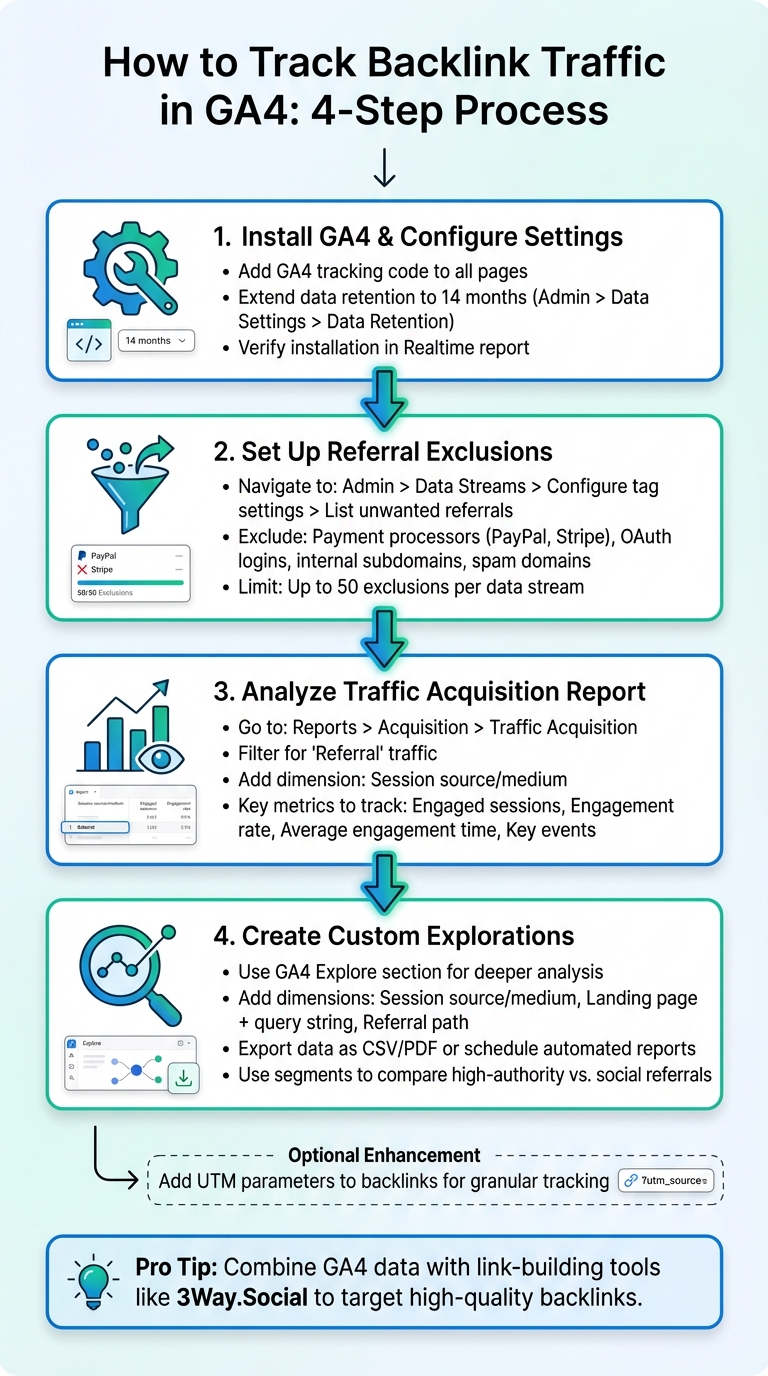
4-Step Process to Track Backlink Traffic in Google Analytics 4
How to See Backlinks in GA4
sbb-itb-88880ed
Setting Up GA4 for Backlink Tracking
To figure out which backlinks are actually driving traffic to your site, you need to make sure Google Analytics 4 (GA4) is correctly installed and configured. This setup involves two key steps: adding the GA4 tracking code to your website and refining referral data by excluding irrelevant sources.
Installing GA4 on Your Website
First, locate your GA4 Property ID in the dashboard under your account name. This ID is what links the tracking code to your specific property. Once you have it, add the tracking code to every page on your site. You can do this by placing it in the header of your website’s template or using a tool like Google Tag Manager.
To confirm that everything is working, check the Realtime report in GA4. Look for your own activity – if you see your session with the correct source attribution, the installation is good to go.
Don’t forget to extend your data retention settings to 14 months. You can do this by navigating to Admin > Data Settings > Data Retention. This ensures you have access to a longer history of data for analysis. Afterward, configure your referral exclusions to clean up your traffic reports.
Configuring Referral Exclusions
Once GA4 is installed, it’s time to refine your referral data by setting up exclusions. Without this step, your reports might include traffic from sources that aren’t actual backlinks, like payment gateways, login redirects, or even your own subdomains. To configure these exclusions, follow these steps:
- Go to Admin > Data Streams > [Your Stream] > Configure tag settings > Show more > List unwanted referrals.
Here are some common sources to exclude:
- Payment processors (e.g., PayPal or Stripe): These redirect users during checkout and shouldn’t count as new referral sessions.
- OAuth login redirects (e.g., accounts.google.com): These bring users back to your site after login authentication.
- Internal referrals from your subdomains or errors in implementation.
- Spam or ghost traffic from fake or fraudulent domains.
When adding exclusions, use a match type like "Referral domain contains" and input the relevant domain identifiers. GA4 allows you to exclude up to 50 unwanted referrals per data stream using "OR" logic. This ensures that any domain matching your criteria is excluded.
Once exclusions are set, GA4 will automatically append an ignore_referrer=true parameter to events that meet these conditions. This prevents these sources from being credited as backlinks or triggering new sessions, keeping your data clean and accurate.
Analyzing Backlink Traffic in GA4
With GA4 set up, you can now turn your configuration into actionable insights. A great starting point is analyzing backlink traffic through the Traffic Acquisition report, which tracks both new and returning users to evaluate how your backlinks are performing.
Using the Traffic Acquisition Report
To dive into your backlink data, head to Reports > Acquisition > Traffic Acquisition in your GA4 dashboard. From there, filter the traffic sources to focus on referrals. The easiest method is to type "referral" in the search bar above the data table. Alternatively, you can click the "+ Add filter" button, set the dimension to "Session default channel group", and choose "Referral" as the value.
"The Traffic acquisition report is a pre-made detail report that’s designed to help you understand where your website and app visitors are coming from. It specifically shows where new and returning users come from." – Google Analytics Help
To see which websites are sending referral traffic, click the "+" button next to the primary dimension column, select "Traffic source", and then choose "Session source/medium". This breaks down referral traffic by domain. If you want to find out which pages on your site are attracting the most backlink traffic, add "Landing page + query string" as a secondary dimension. Keep in mind that GA4 typically only shows the referring domain – not the exact URL of the backlink – unless UTM parameters are in place.
Once you’ve filtered the data, you can start analyzing key dimensions and metrics to measure the impact of each referral on your SEO.
Understanding Dimensions and Metrics
The dimensions and metrics you focus on will shape your understanding of backlink performance. For example, "Session source" identifies the specific domain hosting the backlink, while "Session medium" confirms the traffic came from a referral rather than ads or search engines. To measure the quality of traffic, metrics like engaged sessions (sessions lasting 10+ seconds, or those with a conversion or 2+ page views) and engagement rate are crucial. Additionally, average engagement time highlights how long visitors from each referral source stay on your site, helping you determine which backlinks drive the most meaningful traffic.
| Dimension/Metric | What It Tells You | Why It Matters for Backlinks |
|---|---|---|
| Session source | The specific website (e.g., "example.com") | Shows which domain hosted the backlink |
| Session medium | The traffic type (e.g., "referral") | Confirms the traffic is from a backlink, not ads |
| Engaged sessions | Sessions with 10+ seconds, 1+ conversion, or 2+ page views | Measures the quality of the traffic |
| Engagement rate | Percentage of sessions that were engaged | Compares how well different referrals capture interest |
| Key events | Number of conversion actions triggered | Evaluates the ROI of specific backlink placements |
If you see a red exclamation mark in your report, click it and choose "More detailed results" to refine the data. And if you spot a domain sending traffic but can’t find the exact page with your backlink, try using this Google search operator:
site:[referringdomain.com] "Your Brand Name"
This trick can help you locate mentions of your site on the referring domain.
Creating Custom Reports for Backlink Analysis
While the Traffic Acquisition report gives you a general overview, the Explore section in GA4 takes it a step further. It allows you to create custom explorations tailored to analyze which referring sites are driving the most valuable traffic to your website. This is where you can dive deep into backlink performance.
Building Explorations for Detailed Analysis
To get started in GA4 Explore, choose Blank to create your custom backlink report. In the Dimensions panel, click the "+" icon and add the following:
- Session source/medium
- Landing page + query string
- Referral path (helpful if you need to identify the specific page on the referring site)
Next, for Metrics, include:
- Sessions
- Engaged sessions
- Engagement rate
- Average engagement time per session
- Key events (to measure both traffic volume and quality)
Once these are added, move Session source/medium into the Rows section of your report. To isolate backlink traffic, filter the report to show only rows where Session default channel group equals "Referral". This ensures you’re focusing solely on referral traffic. You can then sort the data by Key events or Engagement rate to identify the backlinks that are driving not just clicks but meaningful conversions.
"Backlinks that lead to conversions are of the greatest value to your website, and ideally, you should always strive to have backlinks that convert, often through strategic methods like ABC link exchanges." – Analytify
Before proceeding, check that your data retention settings are extended to 14 months under Admin > Data Settings > Data Retention. This adjustment allows you to track backlink trends over time, making it easier to identify seasonal patterns or declining referral sources.
Once your exploration is set up, you’re ready to export and analyze the data for even deeper insights.
Exporting and Comparing Backlink Data
After building your custom exploration, exporting the data is the next step. Click the Share icon in the top-right corner and choose Download file to save it as a CSV or PDF. For consistent tracking, use the Schedule email option to have the report sent automatically to your inbox or team members on a weekly or monthly basis.
To dig even deeper, use Segments within your exploration. For example:
- Create a segment for "High-Authority Referrals" (domains with engagement rates above 60%).
- Create another for "Social Referrals" (traffic from platforms like Reddit or Quora).
This side-by-side comparison helps you see which backlink sources deliver the best ROI. If you notice a referral source with zero engagement time or a 100% bounce rate, it’s likely spam traffic. You can block these domains by adding them to your List unwanted referrals under Admin > Data Streams > Configure tag settings.
For even more flexibility, export the data to Google Sheets. This allows you to build custom dashboards, perform cross-metric analysis, and share insights with stakeholders who may not have access to GA4.
Using 3Way.Social for Backlink Building
Once you’ve refined your backlink data in GA4, the next step is leveling up your link-building strategy. 3Way.Social uses AI-powered domain matching to connect your website with relevant, high-quality sites in your niche. The result? Backlinks that genuinely boost your SEO efforts.
How 3Way.Social Improves Backlink Quality
One of the biggest hurdles in link-building is steering clear of low-quality or harmful links that can lead to search engine penalties. 3Way.Social tackles this issue by giving you access to a vetted SEO network filled with high-authority domains. No more endless manual searches or risky link partnerships – 3Way.Social’s AI ensures your site is matched with partners that align with your niche and goals.
Every backlink you gain through 3Way.Social is a permanent do-follow link, which means it passes link equity and helps increase your domain authority score over time. Unlike temporary guest posts or paid links that vanish after a few months, these links stick around. A survey of 518 SEO professionals found that 41.7% prefer using partial-match anchor text for backlinks. With 3Way.Social, you can customize anchor text to align with your SEO objectives, giving you flexibility and control.
Combining 3Way.Social with GA4 Data
Pairing GA4 insights with 3Way.Social’s link-building tools can help you target referral sources that drive meaningful engagement and conversions. By analyzing GA4’s Traffic Acquisition and Exploration reports, you’ll identify which referral sources are already performing well. Then, you can use 3Way.Social to find domains with similar audiences or content themes.
For even more precise tracking, add UTM parameters to your 3Way.Social backlinks. This lets you monitor specific campaigns or placements beyond GA4’s default domain-level tracking. For instance, if you secure a backlink from a partner’s blog post, you could tag it with something like ?utm_source=partnerdomain&utm_medium=referral&utm_campaign=3waysocial. This way, you can track that link’s performance and compare it to others.
Use GA4’s "Comparison" tool to evaluate how new backlinks stack up against your historical referral data. This allows you to identify what works best and refine your link-building strategy over time.
Conclusion
Tracking backlink traffic in GA4 is simple and efficient. Head to Reports → Acquisition → Traffic acquisition and filter for "Referral" traffic. Adjust the primary dimension to "Session source/medium" to identify the domains driving traffic to your site. To dig deeper, use the "Landing page + query string" dimension to locate specific pages with the most backlink traffic. Don’t forget to configure referral exclusions to weed out payment gateways, OAuth logins, and self-referrals that could distort your data.
For a more detailed analysis, take advantage of Explorations in GA4. Custom dimensions and metrics allow you to assess bounce rates, session durations, and conversion paths for each referral source. To get even more precise, tag your backlinks with UTM parameters, enabling granular tracking of your campaigns. These steps ensure you’re set up for actionable insights.
Industry experts highlight the importance of using multiple tools:
"Search Console is better for a comprehensive link profile and Analytics is better for understanding which links actually drive visits." – Shoutex
Once your tracking is in place, the next step is to combine analytics with a focused link-building strategy. Use GA4 data to identify referral sources that bring the most engaged visitors, then prioritize building similar high-quality backlinks. Tools like 3Way.Social can streamline this process by connecting you with vetted, high-authority domains in your niche. These permanent do-follow links not only enhance your domain authority but also improve your rankings.
FAQs
Why doesn’t GA4 show the exact backlink URL?
GA4 doesn’t show the exact backlink URL because it groups backlinks under referral traffic, prioritizing the source domain rather than individual URLs. This approach simplifies reporting by highlighting the traffic’s origin but skips tracking specific backlink URLs, which can change frequently and be numerous. GA4 focuses on giving a broader perspective on traffic sources rather than diving into detailed backlink data.
Which GA4 metrics best show backlink quality?
When it comes to evaluating backlink quality in GA4, the spotlight is on referral traffic since backlinks are logged as referral sources. Some of the most useful metrics to analyze include users, sessions, and engagement tied to specific referrals.
Backlinks that truly deliver value tend to drive traffic that sticks around – think longer session durations and fewer bounces. By digging into referral traffic numbers and how users interact with your site, you can get a clear picture of how effective your backlinks really are.
How do I track one specific backlink in GA4?
To monitor a specific backlink in Google Analytics 4 (GA4), head to the Traffic Acquisition report. Here’s how you can do it:
- Use the source/medium dimension to filter by the backlink’s domain or URL. This allows you to focus solely on traffic coming from that specific backlink.
If you want to keep an eye on its performance over time, consider creating a custom report or exploration. This makes it easier to regularly evaluate how effective the backlink is at driving traffic to your site.